
Using Enrollments Filters#
To Filter Enrollments:
1. Find the Item: Sponsor Organization dropdown.#
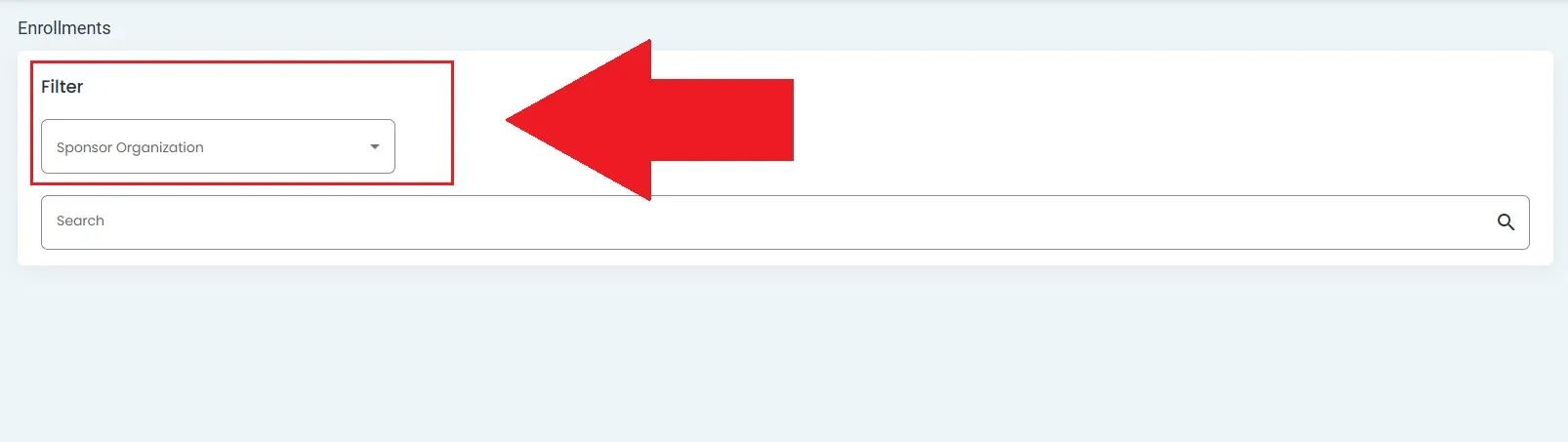
Offering, Enrollments, Sponsor Organization Filter Location#
2. Click on the dropdown to see available filter options.#
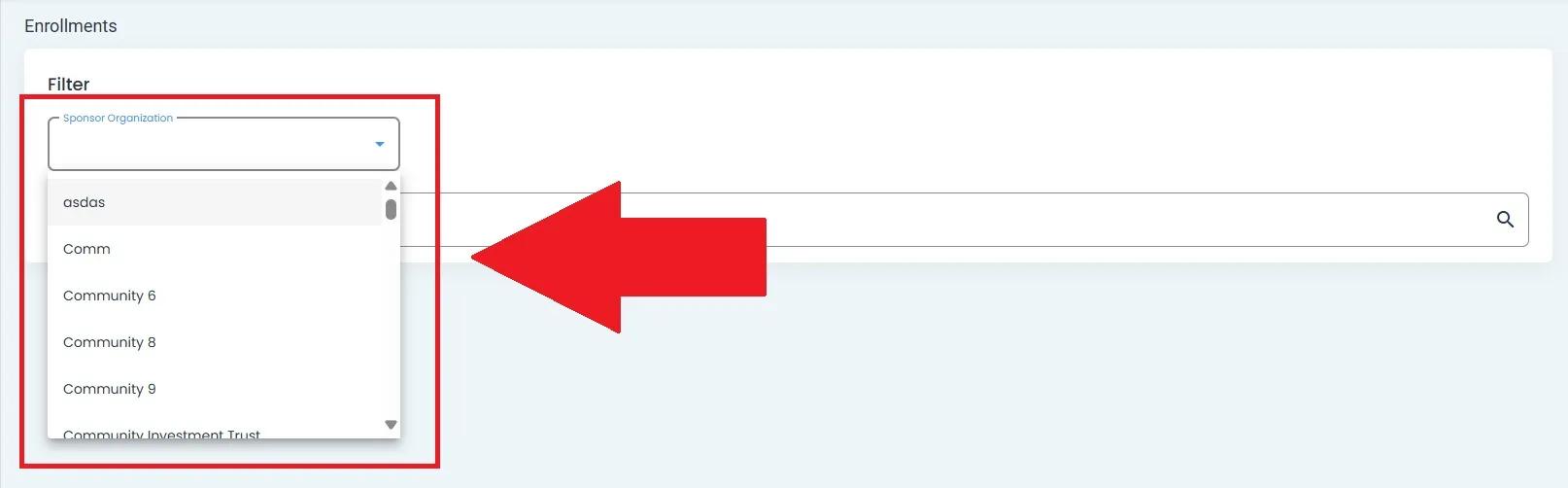
Offering, Enrollments, Filter Dropdown Options#
After selecting, the Item: CIT Corporation dropdown will appear:
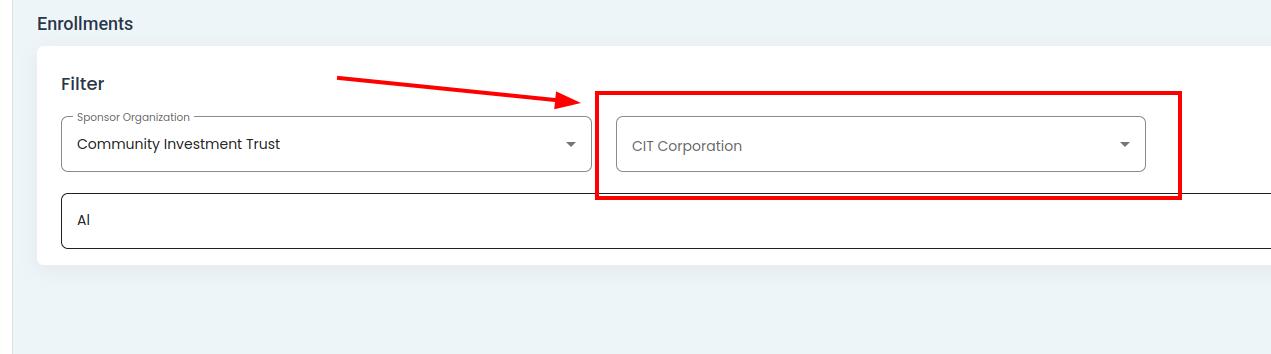
Offering, Enrollments, Filter Selection Results With Two Dropdowns#
Note
Two dropdowns will appear if the selected Item: Sponsor Organization has only one Item: CIT Corporation.
Warning: this feature is currently in development
This feature is currently in development and may not be available in all environments.
3. Select the organization (e.g., CIT Corporation).#
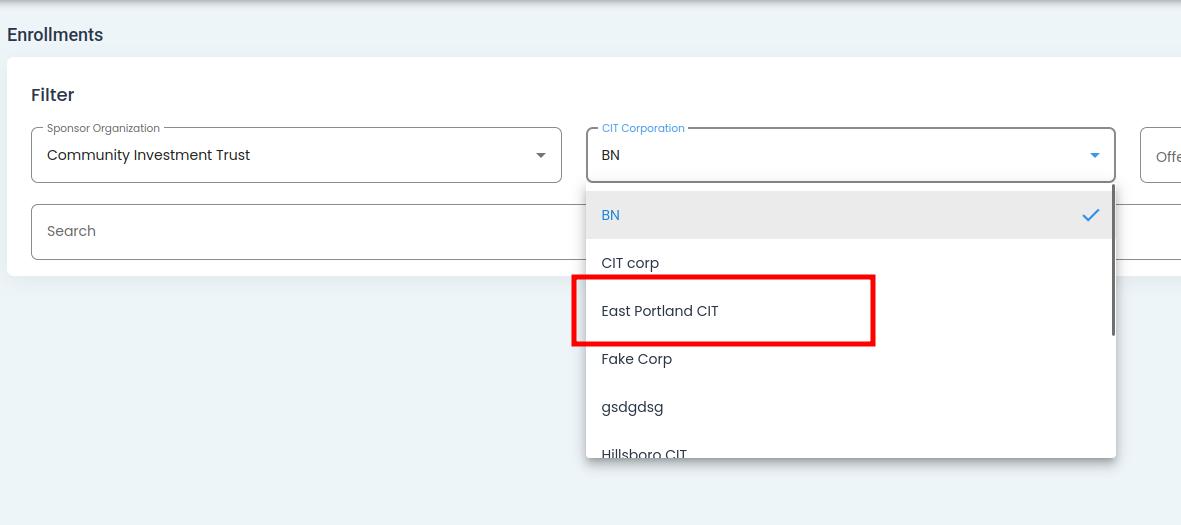
Offering, Enrollments, CIT Corporation Filter Selection#
After selecting, the Item: Offering and Item: Status dropdowns will appear.
The Item: Offering dropdown will populate with the first option on the list.
The Item: Status dropdown will populate with the first option on the list (Option: All).

Offering, Enrollments, Offering and Status Dropdowns Appear#
4. Select the Offering#
Find and Action: Select the Item: Offering dropdown.
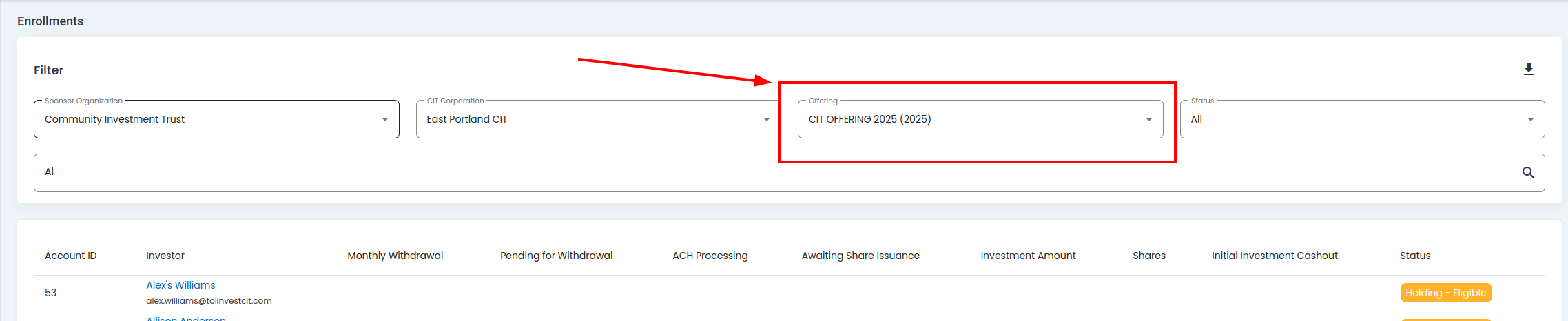
Offering, Enrollments, Offering Dropdown Location#
Action: Select an offering from the offering dropdown.
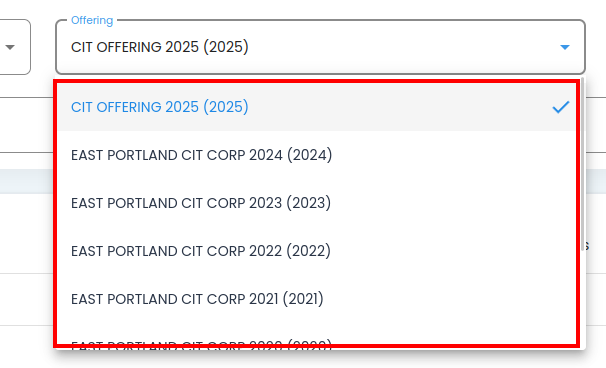
Offering, Enrollments, Offering Dropdown Selection#
5. Select the Status#
Find and Action: Select the Item: Status dropdown.
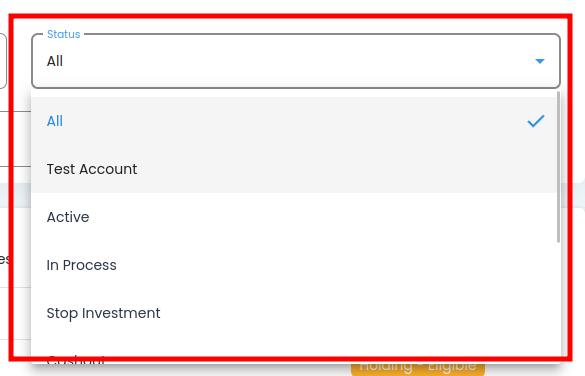
Offering, Enrollments, Status Dropdown Location#
Action: Select a status from the status dropdown.
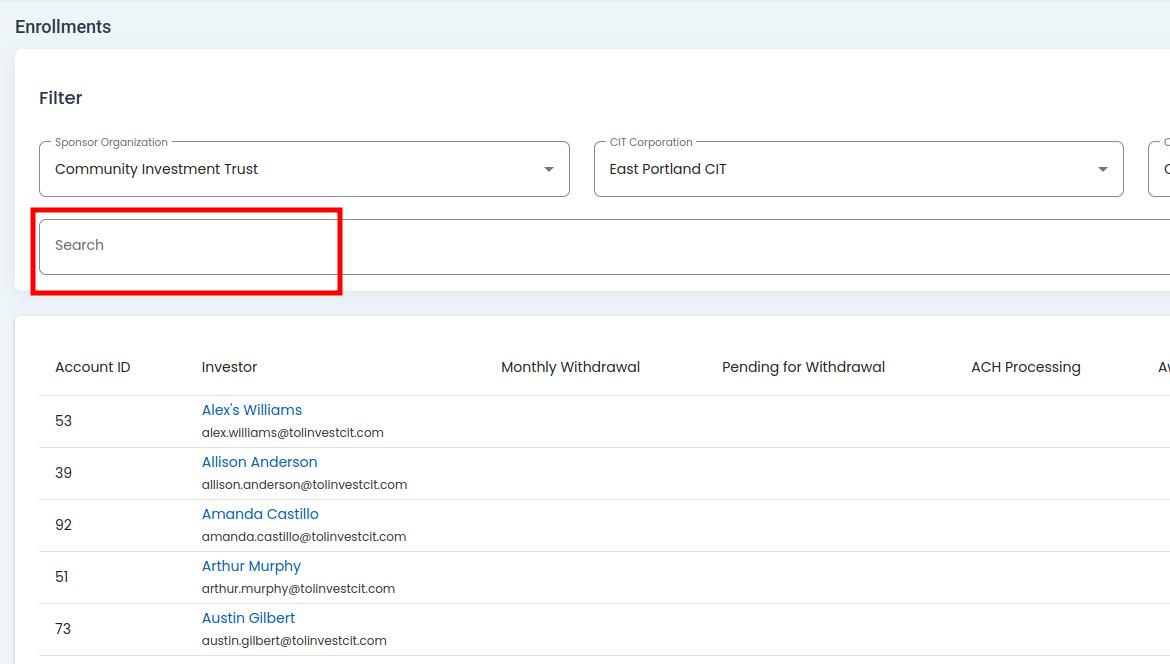
Offering, Enrollments, Search Bar Location#
Available Statuses
The Item: Status dropdown will populate with the following options: